How to set up Playlists in Broadcast
What the Playlists section is for
The Playlists section in Broadcast is where you build the content lineup that your screens will play. A playlist can contain individual media items, Media Collections, or a mixture of both.
Playlists are also where you connect saved content to linked screens. After a playlist has been created and saved, you can use the Screens field to search for a screen and attach the playlist to it.
A playlist is the final content layer shown on a screen. You add content in Media, optionally organise it in Media Collections, and then place that content into a playlist for playback.
Create a playlist
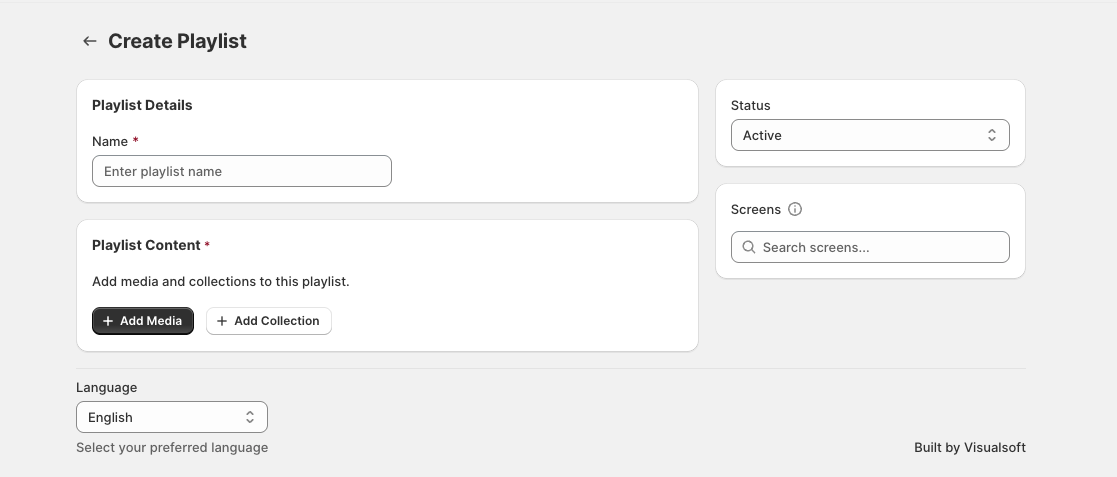
Open Playlists in Broadcast and choose the option to create a new playlist.
On the Create Playlist screen, go to Playlist Details and enter the playlist name in Name.
Use the Status dropdown to set whether the playlist should be available as Active.
This status appears in the playlist editor and helps you identify whether the playlist is currently in use.
In Playlist Content, use:
+ Add Media to add individual media items
+ Add Collection to add a Media Collection
This lets you build a playlist from single items, grouped campaign content, or both together.
Create and save the playlist first, then use the Screens area to attach it to one or more linked screens.
The Screens field includes a Search screens... box so you can find the correct screen by name.
Add media and collections to a playlist
The Playlist Content panel shows the items included in the playlist and how they will be managed together.
Each row can show details such as:
Type
Duration
Schedule
Status
When a collection is added, Broadcast shows it as Media Collection. Individual content items appear using their own media type, such as AI Image.
If a collection contains multiple items, the row also shows the item count. In the example shown below, the playlist summary displays Contains 4 Items | Total Duration: 23s.
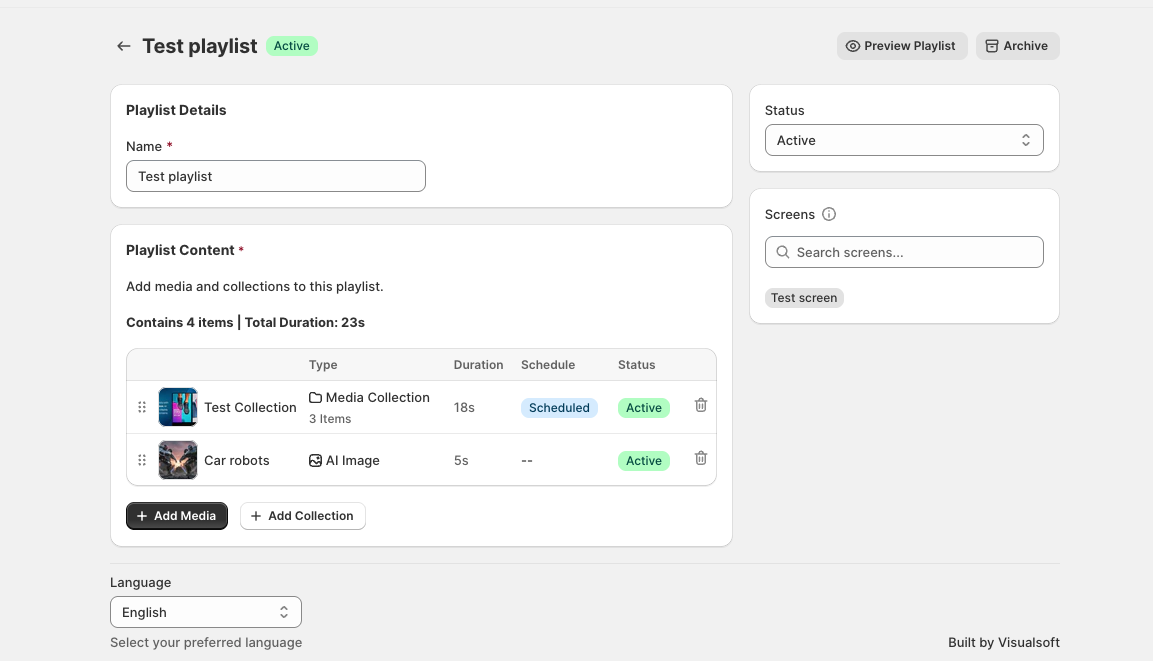
The playlist total duration is calculated from the items currently included, so it is a useful way to check how long one full playback cycle will run.
Link a playlist to screens
Once the playlist has been saved, use the Screens section to attach it to linked screens.
Open the playlist.
Find the Screens panel.
Click into Search screens....
Select the screen you want from the results.
After selection, the screen appears as a label inside the Screens area, confirming the playlist is attached to that screen.
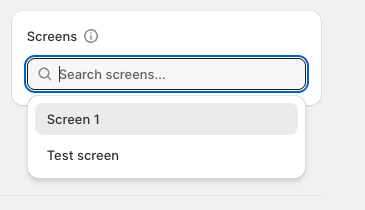
If the screen has not been linked in Broadcast yet, it will not be available from Search screens.... Link the screen first, then return to the playlist and attach it.
Manage playlist playback and availability
When editing an existing playlist, Broadcast includes additional controls at the top of the page:
Preview Playlist to review the playlist
Archive to remove the playlist from active use
The playlist page also shows its current status beside the name, such as Active.
This gives you a quick way to confirm whether a playlist is live, test how it will run, or retire it when it is no longer needed.
Use clear playlist names based on where or why the content is shown, such as Front Window, Summer Promotion, or In-Store Launch. This makes the Screens and playlist search experience much easier as your content grows.
What can appear inside a playlist
Individual media
Add single items when you want direct control over exactly what appears in the playlist and in what order.
Media Collections
Add a collection when you want a grouped set of campaign content included together. This is useful for promotions, seasonal campaigns, or reusable content sets.
A mixture of both
You can combine collections with standalone media in the same playlist. This is useful when part of the screen rotation belongs to a broader campaign but a few items need to be included separately.
Best practices for playlists
Build and save the playlist before trying to attach screens.
Use + Add Media for one-off items and + Add Collection for grouped campaign content.
Check Total Duration to make sure the full rotation is not too short or too long for the screen location.
Review the Schedule and Status columns so time-sensitive content behaves as expected.
Use Preview Playlist before assigning important content to live screens.
Archive old playlists instead of reusing them for unrelated campaigns when you want a cleaner history.
Related features
Add image, video, and product content before placing it into playlists.
Group related content into collections, then add those collections to playlists.
See how Media, Collections, Playlists, and screen pairing fit together in the full setup flow.