How do I pair my display screen?
Pair a screen in Broadcast
Use the Screens section in Broadcast to connect a physical display screen to your account. Pairing a screen creates the link between the display and Broadcast so you can assign a playlist, set its location, and add tags for easier management.
To pair a screen, you will need access to both the Broadcast app and the display screen you want to connect.
How screen pairing works
Broadcast uses a 6-digit pairing code. You generate this code on the display screen, then enter it in the Broadcast app from the Screens section.
In Broadcast, go to Screens and start the flow to pair a new screen.
On the display screen you want to connect, open a browser and go to broadcast.visualsoft.io.
This will generate a 6-digit code for that screen.
Back in the Broadcast app, enter the 6-digit code into the Pair New Screen window.
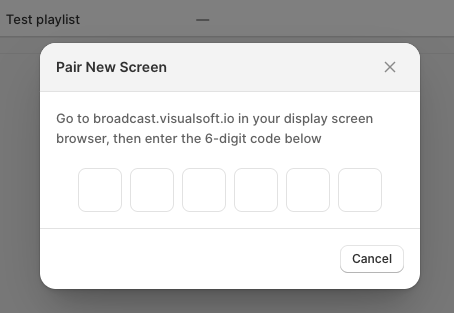
Once the code is accepted, the screen is linked to your Broadcast account. You can then complete its details, including Name, Location, Status, Tags, and Playlist.
What you can do after pairing
After a screen has been paired, you can manage it from its screen details page.
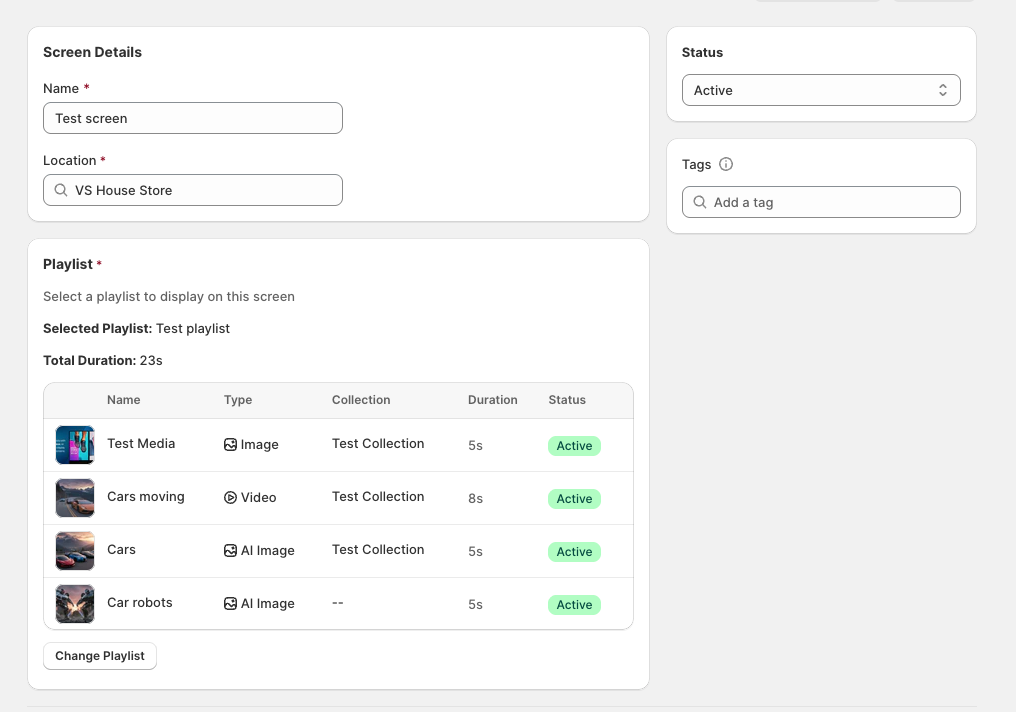
Name: Give the screen a clear name so it is easy to identify.
Location: Assign the screen to a location it's to be used in.
Status: Set the screen status, such as Active.
Tags: Use tags to organise screens and make them easier to filter or group.
Playlist: Connect the screen to the playlist you want it to display.
If a playlist is already connected, the screen details page shows the Selected Playlist, the total duration, and the media included in that playlist. You can update this using Change Playlist.
Use descriptive screen names and consistent tags to make it easier to manage multiple screens across different locations.
Frequently asked questions
Start in the Screens section of the Broadcast app. This is where you pair new screens and manage existing ones.
Open a browser on the display screen and go to broadcast.visualsoft.io. The screen will generate a 6-digit code that you enter in Broadcast.
The pairing code is 6 digits.
Once paired, the screen becomes available in Broadcast so you can assign a playlist, set a location, update its status, and apply tags.
Yes. After pairing, open the screen details and assign a playlist there. You can also change the assigned playlist later using Change Playlist.
Yes. Screen details include both Location and Tags, which helps you organise and manage screens more easily.
Make sure the code was generated on the correct display screen and entered exactly as shown. If needed, reload broadcast.visualsoft.io on the display to generate a fresh code and try again.
Related guides
Follow the full first-time setup flow, including media, playlists, and pairing your first display screen.
Learn how playlists work and how to connect them to linked screens.
Understand how to add the content that will appear on your screens.